> ## Documentation Index
> Fetch the complete documentation index at: https://docs.soharhealth.com/llms.txt
> Use this file to discover all available pages before exploring further.
# Patient Intake
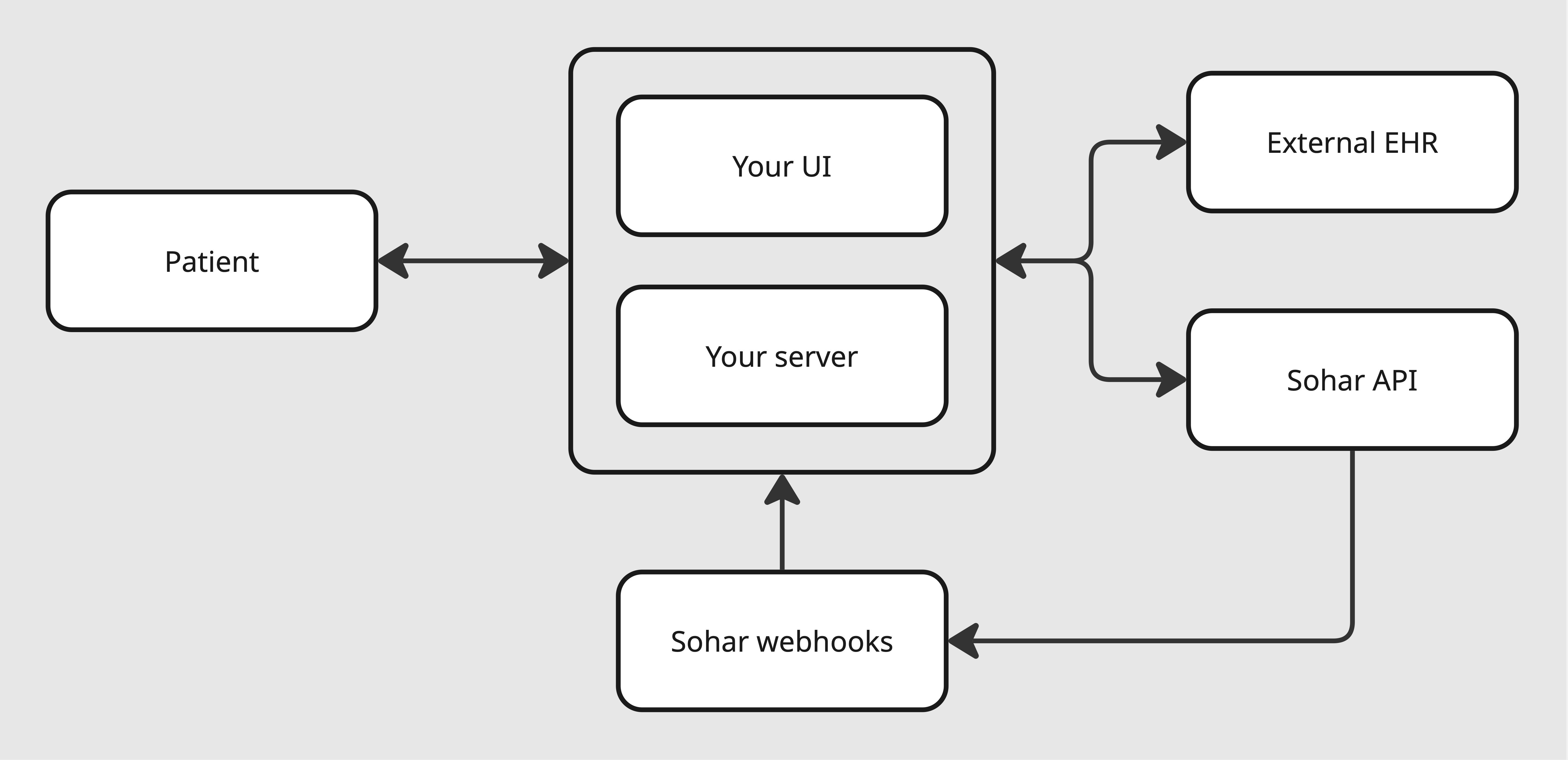
This guide walks through a common approach to integrating Sohar into your patient intake flow. When a patient submits their information (first name, last name, date of birth, insurance information etc.), you send it to Sohar to process, check eligibility and return the result back to your system in real time.
 ## Setup
Create a client ID and client secret in the Sohar [dashboard](https://app.soharhealth.com/settings#oauth).
Create credentials for the sandbox environment to get started quickly without the need for actual patient data.
Configure a [webhook endpoint](/documentation/webhooks/introduction) to listen for events. If you are using the sandbox environment, subscribe your endpoint to the `sandbox.verification.updated` event. If you are using the production environment, subscribe to the `verification.updated` event.
## Workflow
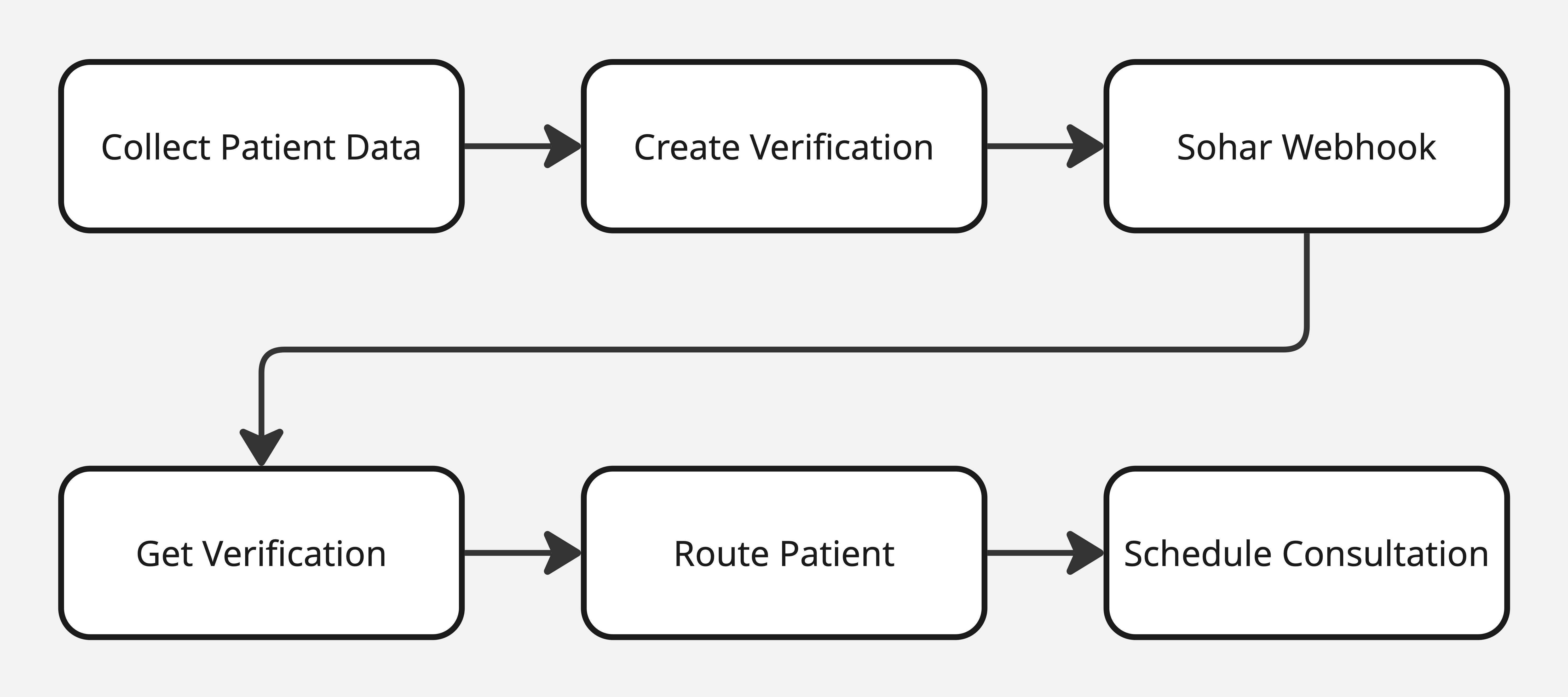
The diagram below outlines the workflow we will build to take your patient through the intake flow and handle the response from Sohar.
## Setup
Create a client ID and client secret in the Sohar [dashboard](https://app.soharhealth.com/settings#oauth).
Create credentials for the sandbox environment to get started quickly without the need for actual patient data.
Configure a [webhook endpoint](/documentation/webhooks/introduction) to listen for events. If you are using the sandbox environment, subscribe your endpoint to the `sandbox.verification.updated` event. If you are using the production environment, subscribe to the `verification.updated` event.
## Workflow
The diagram below outlines the workflow we will build to take your patient through the intake flow and handle the response from Sohar.
 ## Collect Patient Data
Create an interface to capture the following information at minimum:
* First Name
* Last Name
* Date of Birth
* State (2-letter code, e.g. CA)
* Payer ID
* Member ID
You can use the [Get Payers](/api-reference/payers/get-payers) API to retrieve a list of payer IDs. We recommend adding the Sohar payer IDs to your existing payer list, and presenting the list to your patients during intake.
## Create a Verification
Pass the information collected in the previous step to the [Create Verification](/api-reference/verifications/create-verification-v2) API. You will also need to specify the `placeOfServiceCode` and `specialtyCode`. In this example we are interested in benefits information for a telehealth consultation (place of service code `10`) with a psychotherapist (specialty code `PSY`).
```javascript theme={null}
const response = await axios.post(
'https://api.soharhealth.com/v2/verifications',
{
patient: {
firstName: 'John',
lastName: 'Doe',
dateOfBirth: '09/20/2006',
state: 'CA',
memberId: '00000000'
},
payerId: '60054',
placeOfServiceCode: '10',
specialtyCode: 'PSY'
},
{
headers: {
'Authorization': `Bearer ${accessToken}`
}
}
);
```
## Handle Webhook Events
Once the Verification request is complete, the response will be posted to all subscribed webhook endpoints. This is an example of the `verification.updated` and `sandbox.verification.updated` webhook payloads:
```json theme={null}
{
"verificationId": "990cdad8-1438-4bbd-8b55-120b56e87540",
"id": "123456",
"status": "complete.eligible"
}
```
Sohar responds asynchronously via webhooks, typically within 30 seconds. The example below demonstrates how to retrieve information once the response is ready.
```javascript theme={null}
const express = require('express');
const axios = require('axios');
const app = require('express')();
app.use(express.json());
app.post('/webhooks', async (req, res) => {
// Retrieve the verification ID from the request body
const verificationId = req.body['verificationId'];
// Generate an access token
const createTokenResponse = await axios.post(
'https://api.soharhealth.com/oauth/token',
{
client_id: process.env.SOHAR_CLIENT_ID,
client_secret: process.env.SOHAR_CLIENT_SECRET
}
);
const accessToken = createTokenResponse.data.access_token;
// Retrieve details of the completed verification
const getVerificationResponse = await axios.get(
`https://api.soharhealth.com/v2/verifications/${verificationId}`,
{
headers: {
'Authorization': `Bearer ${accessToken}`
}
}
);
// Handle routing logic based on the Sohar response
const verificationData = getVerificationResponse.data;
const status = verificationData.status;
res.status(200).send({ success: true });
});
app.listen(3000, () => console.log('Running on port 3000'));
```
You can store the Sohar response in your system for [data analytics](/documentation/tutorials/data-analytics) purposes, or load it into external systems such as your EHR.
## Patient Routing
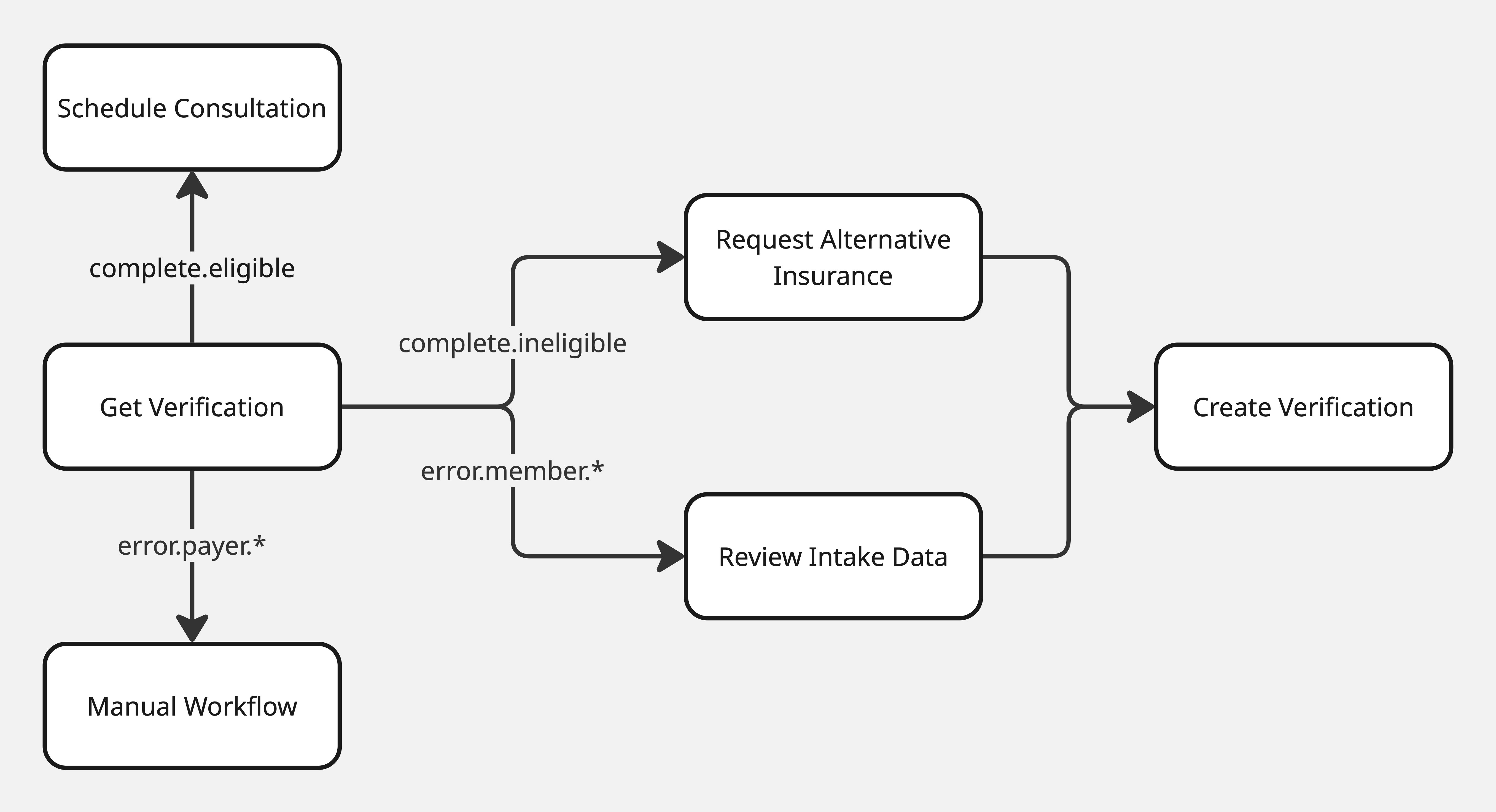
Depending on the response you receive from Sohar, it might make sense to route the patient to different flows. The flows detailed below are most commonly used when integrating with Sohar.
## Collect Patient Data
Create an interface to capture the following information at minimum:
* First Name
* Last Name
* Date of Birth
* State (2-letter code, e.g. CA)
* Payer ID
* Member ID
You can use the [Get Payers](/api-reference/payers/get-payers) API to retrieve a list of payer IDs. We recommend adding the Sohar payer IDs to your existing payer list, and presenting the list to your patients during intake.
## Create a Verification
Pass the information collected in the previous step to the [Create Verification](/api-reference/verifications/create-verification-v2) API. You will also need to specify the `placeOfServiceCode` and `specialtyCode`. In this example we are interested in benefits information for a telehealth consultation (place of service code `10`) with a psychotherapist (specialty code `PSY`).
```javascript theme={null}
const response = await axios.post(
'https://api.soharhealth.com/v2/verifications',
{
patient: {
firstName: 'John',
lastName: 'Doe',
dateOfBirth: '09/20/2006',
state: 'CA',
memberId: '00000000'
},
payerId: '60054',
placeOfServiceCode: '10',
specialtyCode: 'PSY'
},
{
headers: {
'Authorization': `Bearer ${accessToken}`
}
}
);
```
## Handle Webhook Events
Once the Verification request is complete, the response will be posted to all subscribed webhook endpoints. This is an example of the `verification.updated` and `sandbox.verification.updated` webhook payloads:
```json theme={null}
{
"verificationId": "990cdad8-1438-4bbd-8b55-120b56e87540",
"id": "123456",
"status": "complete.eligible"
}
```
Sohar responds asynchronously via webhooks, typically within 30 seconds. The example below demonstrates how to retrieve information once the response is ready.
```javascript theme={null}
const express = require('express');
const axios = require('axios');
const app = require('express')();
app.use(express.json());
app.post('/webhooks', async (req, res) => {
// Retrieve the verification ID from the request body
const verificationId = req.body['verificationId'];
// Generate an access token
const createTokenResponse = await axios.post(
'https://api.soharhealth.com/oauth/token',
{
client_id: process.env.SOHAR_CLIENT_ID,
client_secret: process.env.SOHAR_CLIENT_SECRET
}
);
const accessToken = createTokenResponse.data.access_token;
// Retrieve details of the completed verification
const getVerificationResponse = await axios.get(
`https://api.soharhealth.com/v2/verifications/${verificationId}`,
{
headers: {
'Authorization': `Bearer ${accessToken}`
}
}
);
// Handle routing logic based on the Sohar response
const verificationData = getVerificationResponse.data;
const status = verificationData.status;
res.status(200).send({ success: true });
});
app.listen(3000, () => console.log('Running on port 3000'));
```
You can store the Sohar response in your system for [data analytics](/documentation/tutorials/data-analytics) purposes, or load it into external systems such as your EHR.
## Patient Routing
Depending on the response you receive from Sohar, it might make sense to route the patient to different flows. The flows detailed below are most commonly used when integrating with Sohar.
 ### Schedule Consultation
This is the ideal outcome. The status is `complete.eligible`, indicating that the request is complete, the patient has active coverage and they are eligible for the requested service. The patient can proceed through the intake funnel - often the next step is to schedule their initial consultation.
### Request Alternative Insurance
The status `complete.ineligible` indicates that the request is complete but the patient either doesn't have active coverage or they are not eligible for the requested service. Perhaps their coverage has lapsed or they are using an outdated member ID. In this instance it might make sense to ask the patient if they have alternative insurance information.
If the patient is able to provide alternative information, this information can be submitted to the [Create Verification](/api-reference/verifications/create-verification-v2) API.
### Review Intake Data
A member error status indicates that there was something wrong with the information submitted by the patient. This could either be an `error.member.id` status, an `error.member.name` status or an `error.member.dob` status. Ask the patient to review the information they submitted, and if they are able to correct any mistakes then the updated information can be submitted to the [Create Verification](/api-reference/verifications/create-verification-v2) API.
### Manual Workflow
There are two types of payer error status that can be returned. `error.payer` indicates that the payer has been unavailable for at least 24 hours - it is unlikely that you will see this status returned during patient intake. `error.payer.npi` indicates that the payer doesn't recognise the NPI that Sohar included in the request. [Here](/documentation/guides/verification#providers) is some information about how to manage providers in your account in order to avoid this response. We typically see customers implement manual workflows to handle this status or any other unexpected response. This might involve contacting the patient to clarify the information they submitted.
### Schedule Consultation
This is the ideal outcome. The status is `complete.eligible`, indicating that the request is complete, the patient has active coverage and they are eligible for the requested service. The patient can proceed through the intake funnel - often the next step is to schedule their initial consultation.
### Request Alternative Insurance
The status `complete.ineligible` indicates that the request is complete but the patient either doesn't have active coverage or they are not eligible for the requested service. Perhaps their coverage has lapsed or they are using an outdated member ID. In this instance it might make sense to ask the patient if they have alternative insurance information.
If the patient is able to provide alternative information, this information can be submitted to the [Create Verification](/api-reference/verifications/create-verification-v2) API.
### Review Intake Data
A member error status indicates that there was something wrong with the information submitted by the patient. This could either be an `error.member.id` status, an `error.member.name` status or an `error.member.dob` status. Ask the patient to review the information they submitted, and if they are able to correct any mistakes then the updated information can be submitted to the [Create Verification](/api-reference/verifications/create-verification-v2) API.
### Manual Workflow
There are two types of payer error status that can be returned. `error.payer` indicates that the payer has been unavailable for at least 24 hours - it is unlikely that you will see this status returned during patient intake. `error.payer.npi` indicates that the payer doesn't recognise the NPI that Sohar included in the request. [Here](/documentation/guides/verification#providers) is some information about how to manage providers in your account in order to avoid this response. We typically see customers implement manual workflows to handle this status or any other unexpected response. This might involve contacting the patient to clarify the information they submitted.